
iOS App Icon Generator: Every Size Your App Ships, from One Prompt
To generate app icons for iOS you need one file done right: a 1024x1024 PNG with square corners and no transparency, which Apple derives every other size from. Describe your mark once, preview it under the home screen mask, and export the App Store upload together with the Xcode asset catalog set in one pass.
iOS App Icon Examples
Icons generated for App Store launches: single bold subjects in flat, 3D and glass styles that stay readable from the 1024 px upload down to the 29 pt Settings row.


What Is an iOS App Icon Generator?
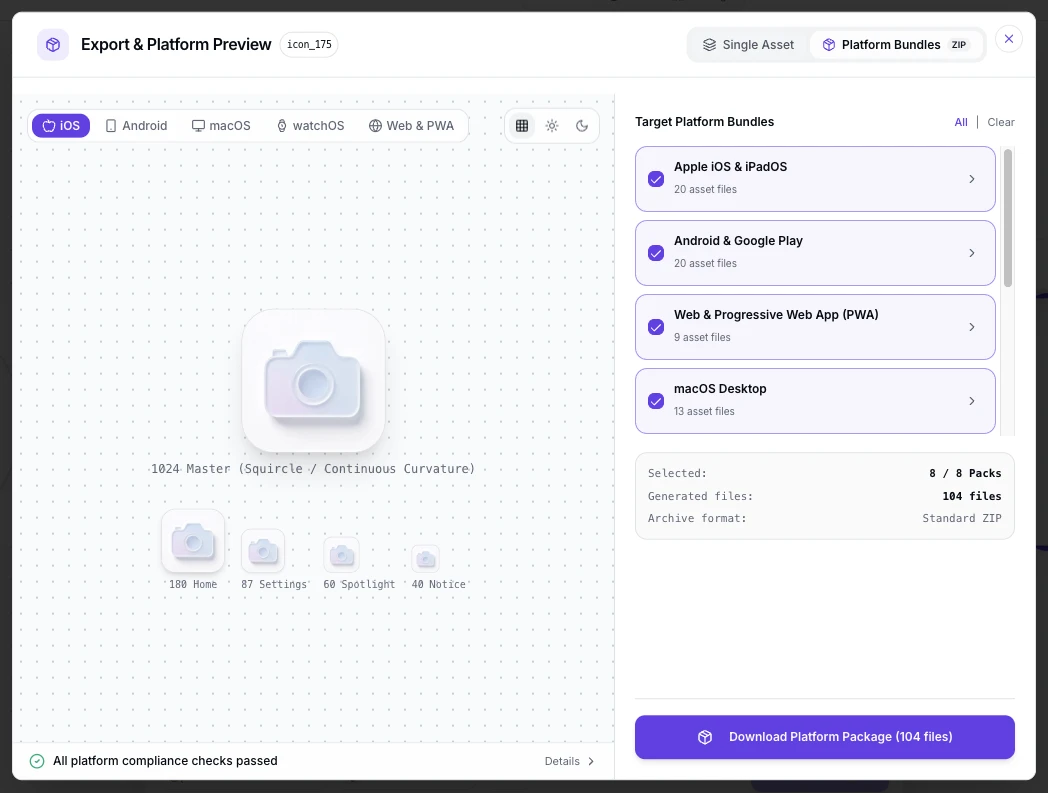
Most tools that rank for iOS icons start from artwork you already have: Apple's Icon Composer layers a finished design, and Figma plugins rescale an existing square. An iOS app icon generator starts earlier, at the sentence. You describe the mark, the generator draws the 1024x1024 master, and the same file feeds the App Store upload, the asset catalog and every device size Xcode derives from it. The first render is rarely the final one, so each icon lives on the infinite canvas as a node you can branch from: rework the prompt, compare mask previews side by side, swap the background in one click, and keep every iteration linked to its origin before exporting the store set.
Visual Lineage Tree
Branch one mark into weight, color and lighting variants, then trace every iOS icon iteration back to the prompt that produced it.
Built-in Post-Processing
One-click background cutout and solid color fills, so the master meets the App Store no-transparency rule without opening another editor.
Safe Zone Protection
Adjustable inner padding keeps the subject clear of the system's corner masking at home screen and Settings sizes.
iOS App Icon Prompt Examples
Copy any of these into the generator, then edit the subject, style and color words to fit your app. A strong iOS icon prompt states three things: the subject and how it sits in the square, the style and palette, and that the mark must survive the system mask at small sizes.
Minimal utility mark
Minimal iOS app icon, single calendar glyph centered on a warm cream field, thick silhouette readable at 29 pt in Settings, full square composition, no text, no baked rounded corners, flat style
3D App Store icon
3D iOS app icon, glossy gradient sphere with soft studio light, subject filling two thirds of the square, calm background, one clear silhouette that reads at 180 px
Letterform for an indie app
iOS app icon for a journaling app, bold letter J centered, deep violet background, white mark, no thin strokes, full square, flat modern style
How to Make an iOS App Icon in 3 Steps
From one sentence to the App Store upload and the Xcode set, with no image editor open.
- 1
Describe the icon
Write one sentence covering subject, style and colors, like "a flat compass mark, navy on white, iOS app icon for a hiking app". One clear shape gives the system mask something to preserve.
- 2
Generate the 1024 master, then check it masked
Generate at 1024x1024 and preview the icon under the home screen mask, at 180 px and in the 29 pt Settings row, before judging it. Users meet the icon masked and small, never as your full square.
- 3
Export the store set
Export the 1024x1024 no-alpha PNG for App Store Connect and the asset catalog set for Xcode from the same master. The table below lists what each surface expects.
iOS App Icon Size and Format Specs
App Store Connect and Xcode validate the icon against hard rules before your build ships, so the rules come first. These are the current requirements.
| Surface | What the surface needs | Format rules | What happens next |
|---|---|---|---|
| App Store marketing icon | One 1024x1024 px PNG | sRGB or Display P3, no alpha channel, no transparency, no layers, square corners with nothing baked in | App Store Connect checks the file at upload and derives the store listing artwork from it |
| AppIcon.appiconset in Xcode | A single 1024x1024 entry in the asset catalog | Since Xcode 14 you provide the one master and the build derives every device size; older projects list each size in Contents.json | Xcode writes the derived PNGs into the app bundle at build time |
| Home screen and Spotlight sizes | 180x180 px on iPhone, 167x167 px on the large iPad Pro, down to 58 px in Settings | All cut from the 1024 master, so the silhouette must survive the shrink | iOS applies its own superellipse mask; pre-rounded artwork gets rounded twice |
| iOS 26 appearances | Optional dark, tinted and clear (Liquid Glass) looks | Built as layered icon files in Apple's Icon Composer; the standard 1024 master still ships a normal icon everywhere | Users on iOS 26 can tint the home screen, so icon marks need contrast against varied backgrounds |
Specs follow Apple Developer icon requirements and App Store Connect validation, checked September 2026.
Describe the mark, check it under the system mask, then ship the 1024x1024 upload and the Xcode asset set from the table above in one pass.
Open the iOS App Icon GeneratorOne master, every iOS surface
Every surface in the table reads a file cut from the same 1024px master. Have a finished square logo already? The free app icon resizer cuts it into every iOS size without a new render.
The 1024 upload
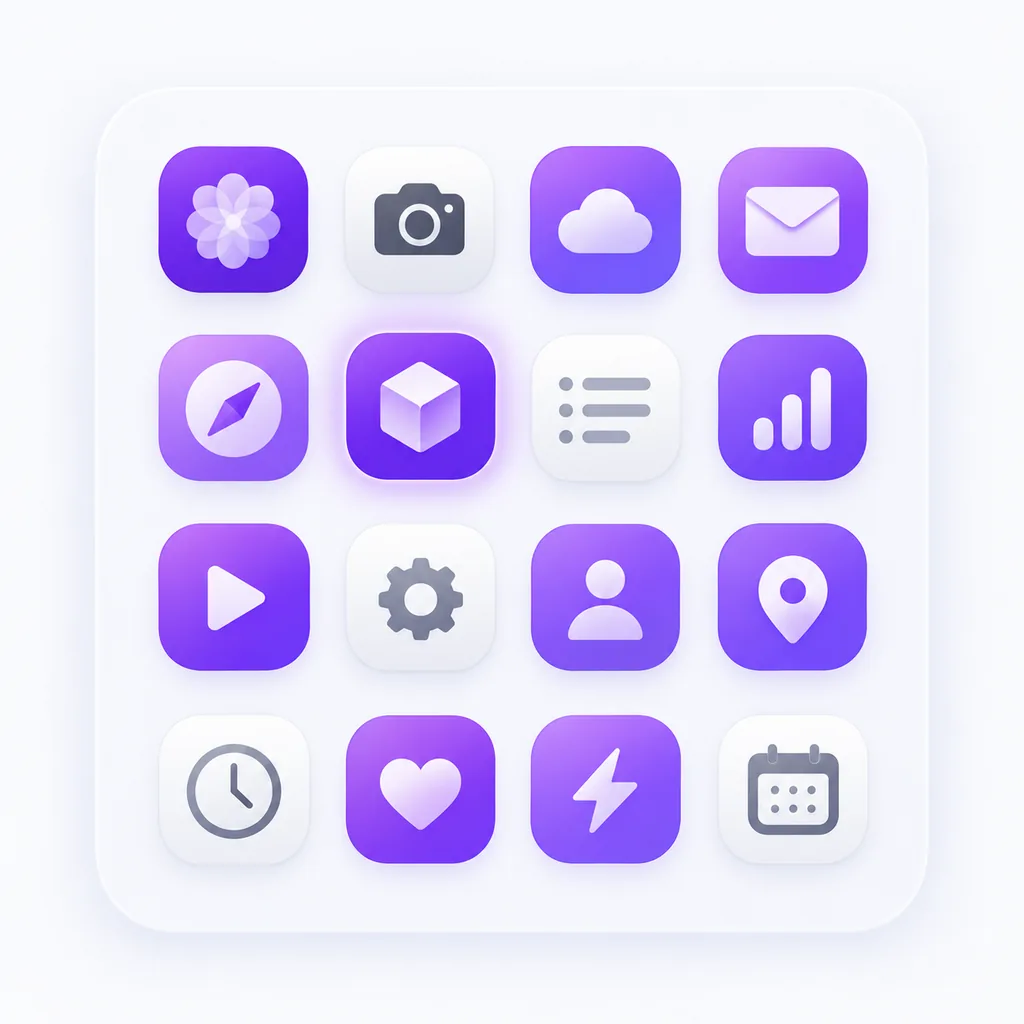
The only file Apple asks you to upload: a 1024x1024 PNG without an alpha channel, transparency or rounded corners. Flattened, square-cornered artwork passes validation the first time.
AppIcon.appiconset in Xcode
Drop the master into the AppIcon set in your asset catalog and Xcode derives the rest. No more maintaining a dozen entries by hand; the single-size workflow replaced that in Xcode 14.
Home screen, Spotlight and Settings
iPhone shows the icon at 180 px, the large iPad Pro at 167 px, Settings at 58 px. All of them come from your master, masked to the system superellipse with no way to opt out.
iOS 26 layered looks
Dark, tinted and Liquid Glass appearances are authored as layers in Apple's Icon Composer. Generate your base mark here first, then carry it into Composer if you want the layered treatments.
Where the iOS app icon appears in the wild
The home screen is only one stop. The same masked square sits in the App Store search row beside competitor icons, on your product page header, in Settings at 58 px, in Spotlight results and inside the App Library grid. Design for the smallest of these first: a mark that reads in a crowded search row holds up on the home screen too.
Three Ways to Get an iOS App Icon
An AI generator, Apple's Icon Composer with a Figma plugin and a freelance designer all end at the same 1024px upload. They differ in where you start and how much of the artwork exists before you begin.
| AI icon generator | Icon Composer and Figma plugins | Hiring a designer | |
|---|---|---|---|
| Starting point | A sentence describing the mark | Finished artwork you already have | A brief and a call |
| Creates the artwork | Yes, every icon drawn for your prompt | No, it layers and rescales what you supply | Yes, within the brief |
| Time to a finished icon | Under a minute per concept | Minutes, once the artwork exists | Days per round |
| Cost | Credits or subscription, free to start | Free tools on top of a design stack | Hundreds per project |
| Store spec compliance | 1024 upload and asset set exported to spec | Composer handles iOS formats; other stores left to you | Handled if the brief includes exports |
| iOS 26 layered looks | Base mark generated here, layers assembled in Icon Composer | Built in, that is the tool's purpose | Possible, with skill and iterations |
Comparison of typical workflows, verified as of 2026.
What the Generator Handles for You
Everything between the first prompt and files App Store Connect accepts.
One 1024px master
Generate once at full resolution; the App Store upload and every derived size downscale from it cleanly.
No-alpha export
The 1024 PNG leaves the generator flattened and opaque, matching the App Store transparency ban.
Xcode-ready asset set
Export the AppIcon.appiconset sizes from the same master and drop them into the asset catalog.
Mask preview, not baked corners
Preview the superellipse mask at 180 px and 58 px while the file stays a full square.
Variants until it reads small
Regenerate the same concept to test weights and colors until the mark survives the Settings row.
Every style for one mark
Flat, 3D, glassy, pixel and more presets, tuned for icon-scale silhouettes.
iOS Icon Styles, from Flat to Glass
Style decides whether the mark survives the shrink from a 1024 px upload to a 58 px Settings row. Flat and minimalist marks hold small sizes most reliably, 3D presets add depth once the silhouette stays single and bold, and glass presets echo the iOS 26 material without the layered file. Compare directions at icon scale in the icon style gallery: the minimalist, 3D and glassy pages show each style on real marks.
Design an iOS Icon That Survives Every Mask
Most iOS icon rejections and redesigns trace back to four habits. Compose the full square, because iOS masks the corners itself and pre-rounded artwork gets rounded twice. Keep strokes thick, since hairlines vanish at 58 px. Skip text in the icon; the app name sits right below it on the home screen. And check contrast against varied backgrounds, because iOS 26 lets users tint the home screen and your mark rides on colors you do not control.
Where the Workflow Fits
One master from the generator, exported for every surface that shows a small square beside your app's name.
First App Store launch
Ship the 1024 upload with the listing, drop the asset set into Xcode, and clear icon validation once.
Listing refreshes
New icon, same app: regenerate, export and update App Store Connect the same afternoon.
iOS 26 layered treatments
Generate the base mark, then build the dark, tinted and clear layers in Apple's Icon Composer.
Shipping to Google Play too
The 512x512 Play asset and the mipmap set from the same master, spec-checked for Play Console.
PNG masters for every channel
One PNG export pass for the App Store, Play, web favicons and press kits.
App families
Reuse one prompt base to keep a suite of apps consistent, then browse the icon gallery when the set needs to grow.
Related Tools
Blog
Further Reading
Longer reads on icon design, store specs and workflows.


iOS App Icon FAQ
Sizes, Xcode, transparency and the questions people ask before shipping an iOS icon.
What size is an iOS app icon?
The upload is a single 1024x1024 px PNG. On the device, iPhone shows the icon at 180x180 px and the large iPad Pro at 167x167 px, with Settings down at 58 px. Since Xcode 14 you supply only the 1024 master and the build derives every smaller size.
How do I add an app icon in Xcode?
Open your asset catalog, select the AppIcon set, and drop the 1024x1024 PNG into the single-size slot. Xcode generates the device sizes at build time; you no longer fill in a grid of entries by hand. Export the master and the ready-cut sizes from the generator above.
Can an iOS app icon have a transparent background?
No. The App Store upload rejects transparency: the 1024 PNG must be flattened with no alpha channel. Transparent pixels also break under the home screen mask, which expects opaque artwork. Export a solid background instead.
Should I round the corners of my iOS icon?
No. iOS applies its own superellipse mask on every surface, from the home screen to the App Store. If you bake rounded corners into the file, the system crops them again and the artwork visibly shrinks. Ship square corners and let the mask do the rounding.
What format does the App Store require for the app icon?
A 1024x1024 px PNG in sRGB or Display P3, with no alpha channel, no transparency and no layers. JPEG is accepted for the upload, but PNG is the safe default because Xcode uses the same master.
How do I generate app icons for iOS for free?
The generator above starts with free credits: describe the mark, generate the 1024 master, and export the App Store upload before paying anything. Further generations use credits, and every plan includes all export formats.
What about iOS 26 Liquid Glass icons?
iOS 26 adds dark, tinted and clear looks authored as layered icon files in Apple's Icon Composer. Your standard 1024 master still ships a normal icon on every device, so the layered treatments are an optional second step, not a replacement.
Can I use the generated icon in a published app?
Yes. You keep full commercial rights to every icon you generate, subject to the terms of service, including icons shipped on the App Store.
Do I need a different icon for Google Play?
Google asks for a 512x512 PNG with its own rules. The Google Play icon generator cuts the Play asset and the Android mipmap set from the same master.
I already have a finished square logo. Do I still need to generate?
No. Feed it to the free app icon resizer to cut every iOS size locally. Generate here when the artwork itself does not exist yet.
Generate Your iOS App Icon Set
Describe the mark once, export the 1024x1024 no-alpha upload and the Xcode asset set from one master, and submit to App Store Connect the same day.